> For the complete documentation index, see [llms.txt](https://mieter.immodio.app/llms.txt). Markdown versions of documentation pages are available by appending `.md` to page URLs; this page is available as [Markdown](https://mieter.immodio.app/en/anleitung/bewerbung-auf-eine-wohnung/1.-besichtigungstermin-anfragen.md).
# Request a viewing appointment
How can I request a viewing appointment through Immodio?
To request a viewing appointment through Immodio, you need a **personal link** from your landlord, property manager or estate agent. This link takes you directly to the viewing schedule for the property.
{% stepper %}
{% step %}
### Open the link
Open the link you received from your landlord, property manager or estate agent, either directly in a message or through the property listing portal.
{% endstep %}
{% step %}
### Choose a viewing appointment
You will see a page listing **all available viewing appointments**. **Choose the appointment that suits you**.

{% endstep %}
{% step %}
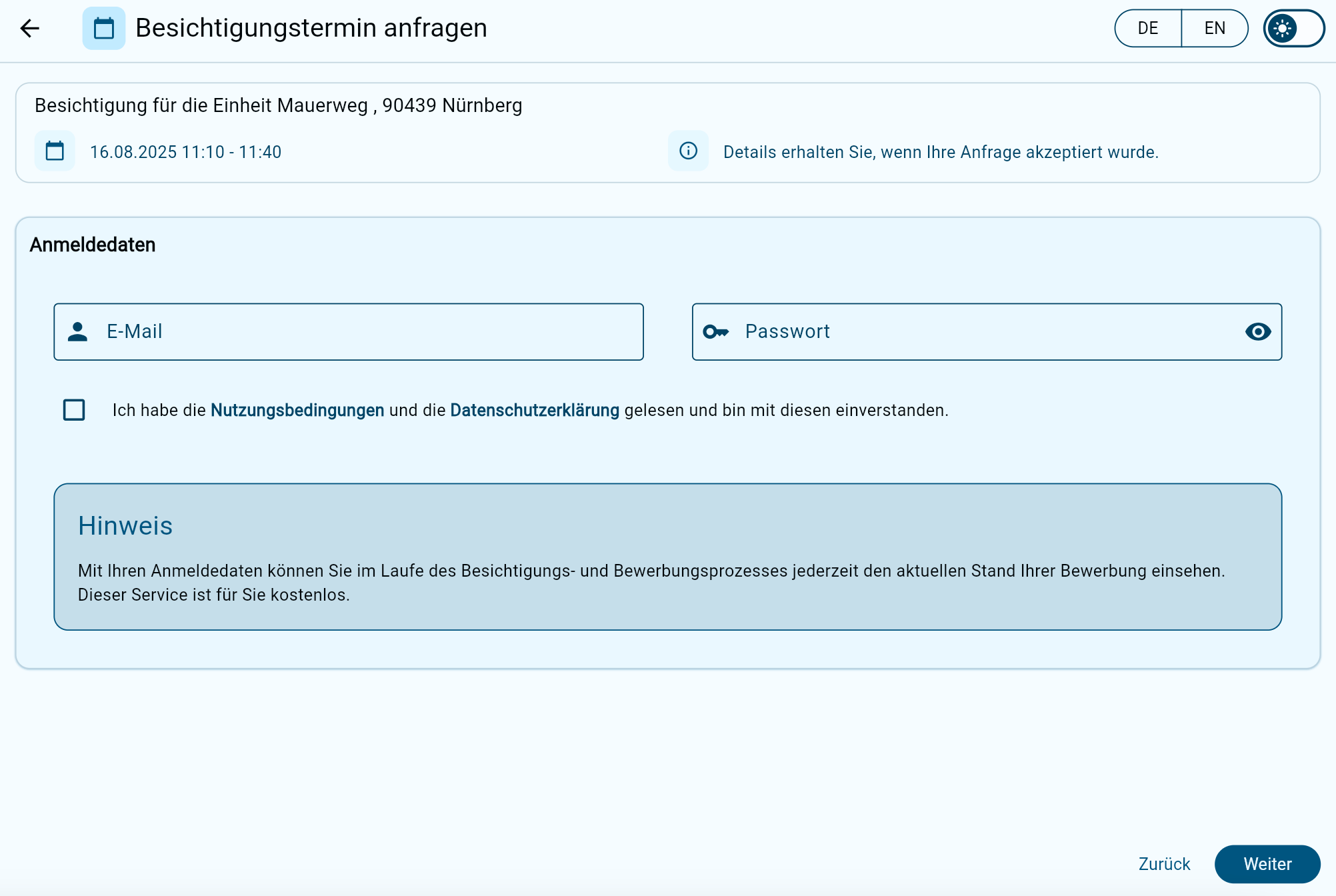
### Set up your login details
To request a viewing appointment through Immodio, you first need to create a **free Immodio account**.
* All you need is a **valid email address** and a **password of your choice**.
* Once registered, you can log in at any time using your login details and check the status of your application.
* If no viewing appointments are available, you can join the waiting list.
{% hint style="success" %}
Immodio is **completely free** for prospective tenants and tenants.
{% endhint %}
Once you have entered your details, **click “Next”** to continue with your request.
{% endstep %}
{% step %}
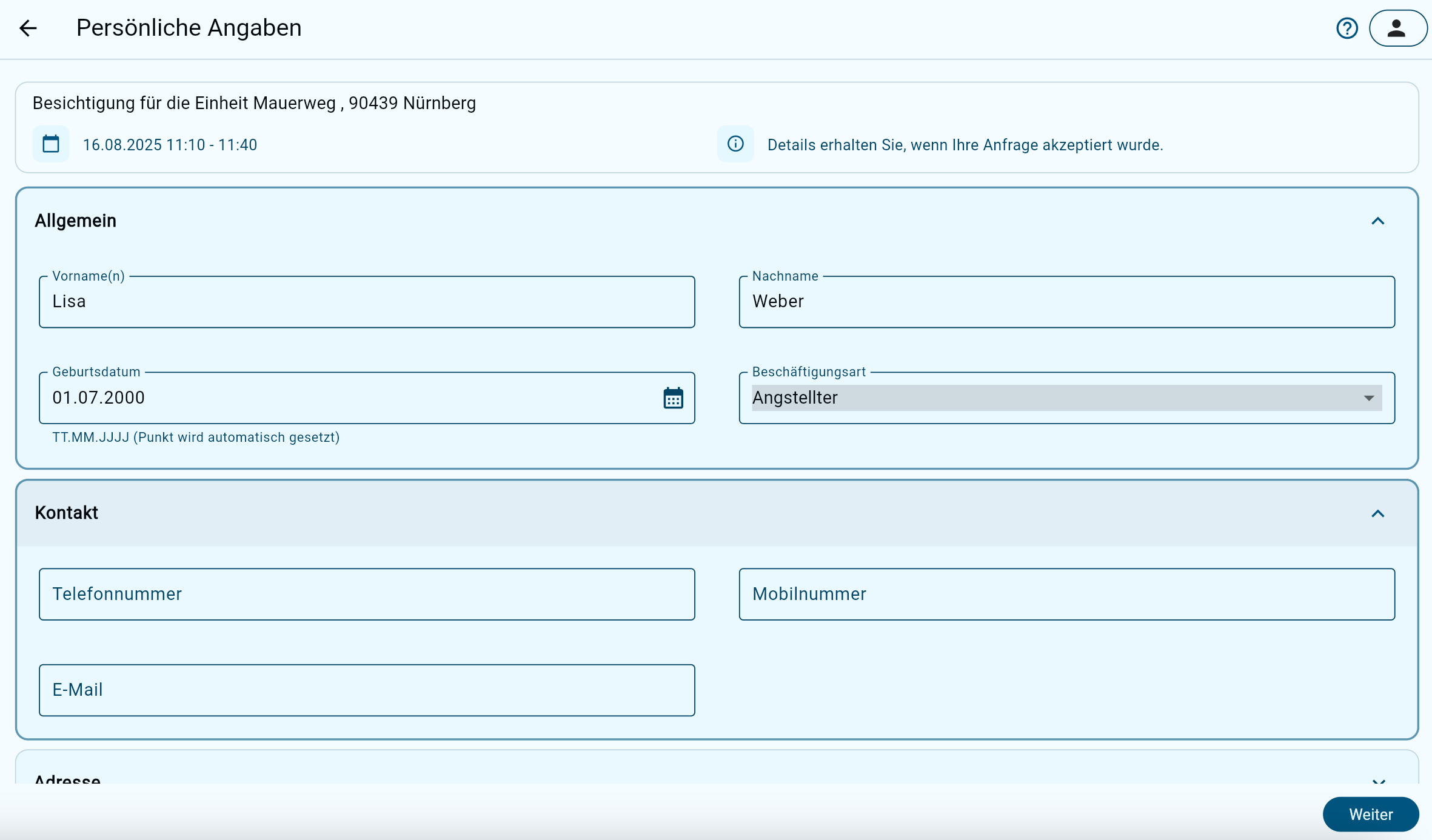
### Enter your personal details
Now enter your personal details, then click “Next”.
{% endstep %}
{% step %}
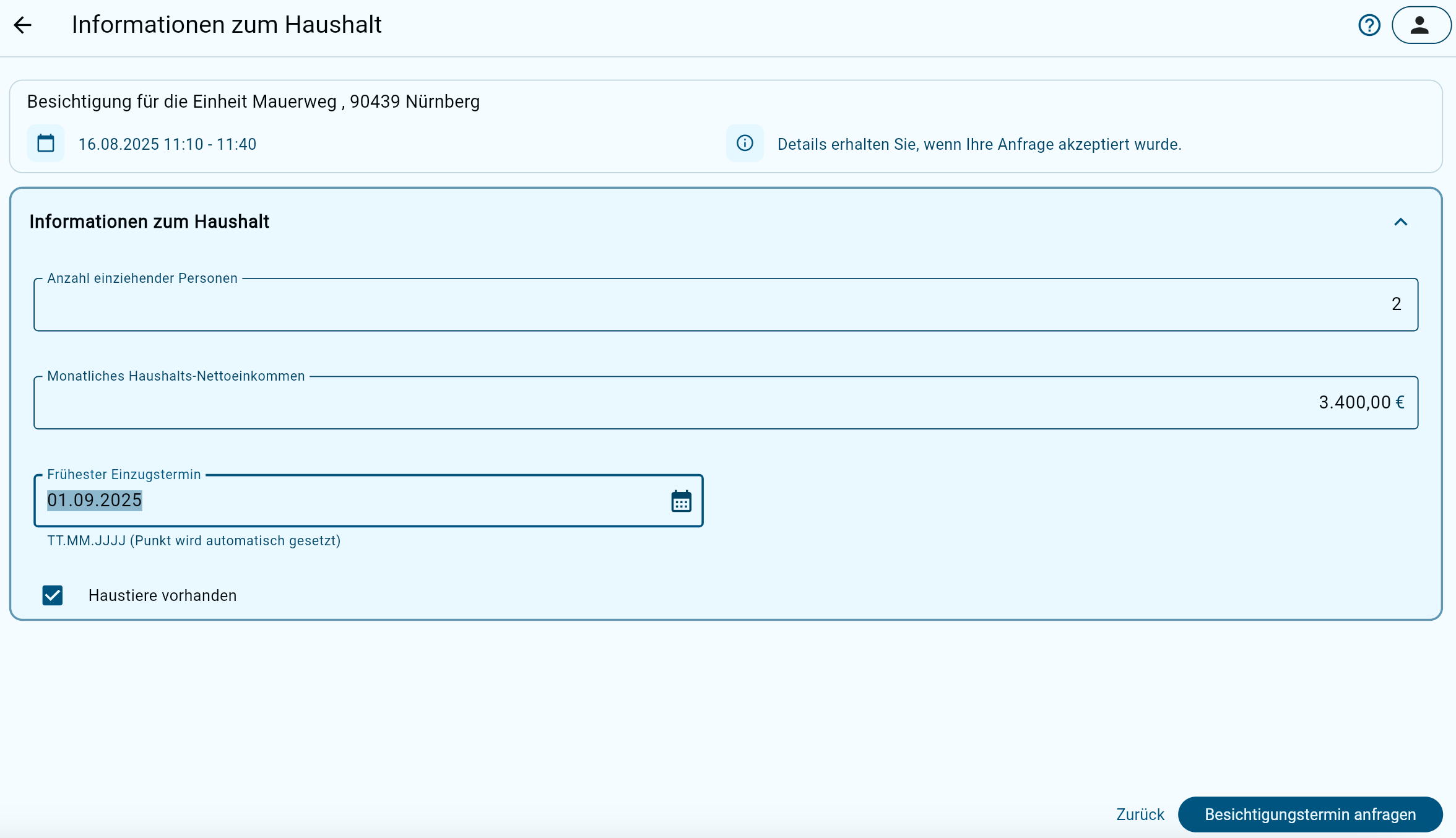
### Household information
In the final step, enter some general information about your household, then click **“Request viewing appointment”**. Your request will be sent to the landlord automatically for review. In the Immodio tenant portal, you can check the status of your request at any time under **“Applications”**, or cancel the appointment if needed.
{% endstep %}
{% step %}
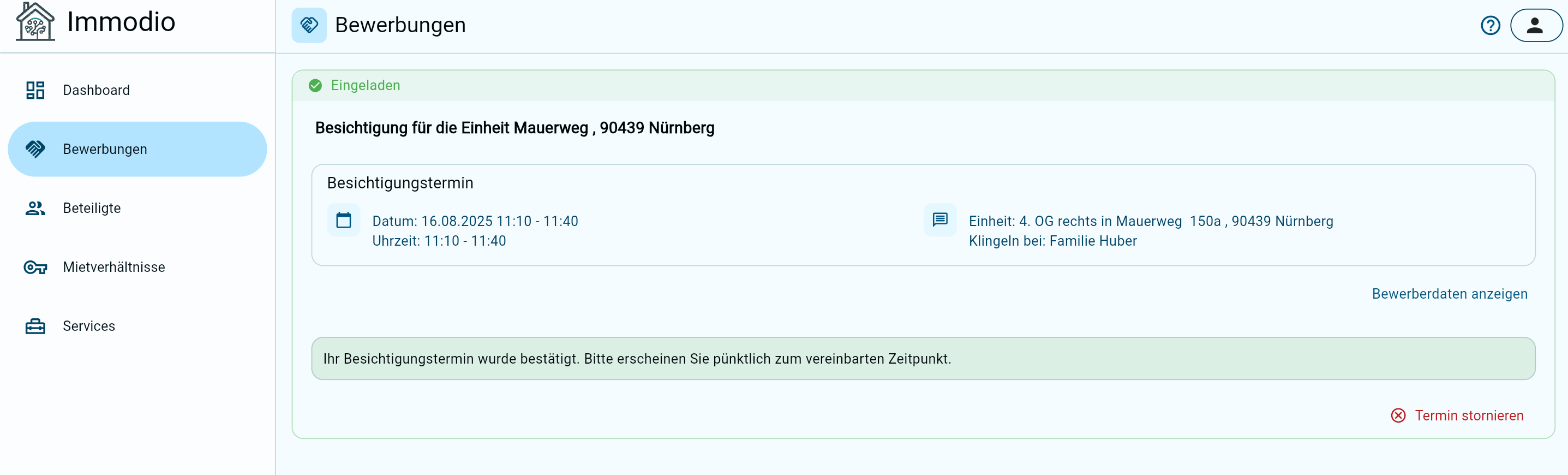
### Receive confirmation
Once the landlord has confirmed your viewing request, you will receive an email notification. All further information about the viewing will then be available in Immodio under **“Applications”**, including:
* The property's full address
* Directions or instructions for finding the unit on arrival
{% endstep %}
{% endstepper %}